 BukaDesk

How It Works
Security
Features
Docs
Download


Connection Quest - How It Works
Run BukaDesk on the computer you want to access, then open its private address from another browser. Pair to view the display; control is a separate action.
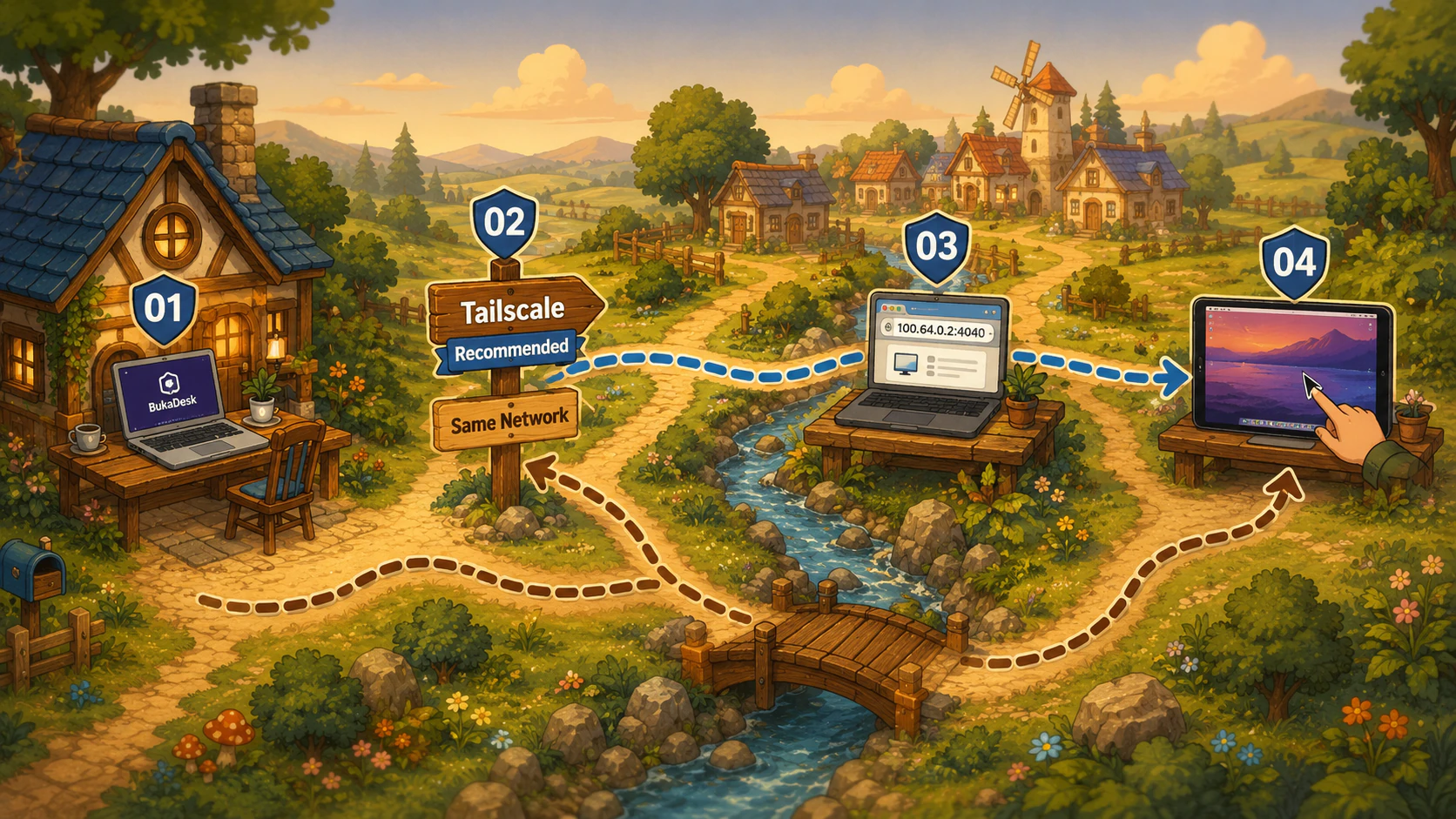

Quest Objectives
- Start BukaDeskOpen Desktop on your Target Mac, sign in by email, and approve the sign-in link in your browser.
- Choose private accessAfter Mac registration and permission checks, choose Tailscale or Same Network on a trusted network, then select Start Server.
- Open the addressOpen the Target URL shown by Desktop in a browser on your other device.
- Pair and viewEnter the Pairing Code to view. Use Take Control if nobody controls the Mac. Otherwise, use Request Control and wait for Admin approval, or confirm Reclaim Control if you are Admin.




Why Tailscale?
A private network between your devices, without exposing your computer publicly.
- Private connection
- No port forwarding
- Works across networks



Private. Fast. Yours.
Your Desktop,
Wherever You Roam
Access and control your computer from another browser — privately, wherever you are. BukaDesk v0.1.0 Free Public Beta is available for Apple Silicon (arm64) Macs.
No cloud desktop. Direct connection to your computer.
Private remote desktop
No cloud relay. Direct connection to your computer.
Tailscale or local network
Fast, private access on the network you trust.
Browser-based control
Keyboard, mouse, files, and audio from one tab.
Desktop first
Built for desktop computers with privacy in mind.
How BukaDesk works
Connect directly to your computer from a browser over Tailscale or your local network.
Private by design
Your remote desktop stays on the network you control.
BukaDesk documentation
Setup guides and reference material will be available here.
Download BukaDesk
BukaDesk v0.1.0 Free Public Beta is available for Apple Silicon (arm64) Macs.
Simple pricing
Pro subscriptions are not yet available to purchase. Pricing has not been announced.